GitHub Copilot Chat Slash Commands: A Practical Overview with Examples
What each command does, which editors support it, and how to phrase it so you get useful results.
Typing a long prompt for a routine task gets old fast. "Explain this function", "write tests for this", and "fix this error" come up dozens of times a day, and GitHub Copilot Chat has shortcuts for them: slash commands.
This guide covers the commands GitHub documents today, which editors support them, and examples you can copy. It is written for developers who already use Copilot Chat and want to use it faster and more precisely. The examples use GitHub Copilot Chat; Microsoft 365 Copilot is a different product with different commands.
Short answer: GitHub Copilot Chat slash commands are shortcuts you type after / in the chat box. /explain, /fix, and /tests are listed for VS Code, Visual Studio, JetBrains IDEs, and Xcode; /doc, /optimize, /simplify, and /fixTestFailure depend on the editor.
How slash commands work
In the Copilot Chat prompt box, type / and the name of a command. The command stands in for a longer prompt and applies to your current context: usually the selected code, or the file open in the active editor.
Two rules matter more than any individual command:
- The list depends on where you are. GitHub's own cheat sheet says available commands vary by environment and chat context. Type
/in your editor to see exactly what you have. - Selection is the scope.
/testson a selected function behaves very differently from/testswith nothing selected. Select the smallest piece of code that contains what you care about.
You can add your own words after the command, for example /fix followed by the error message. That is where most of the quality comes from.
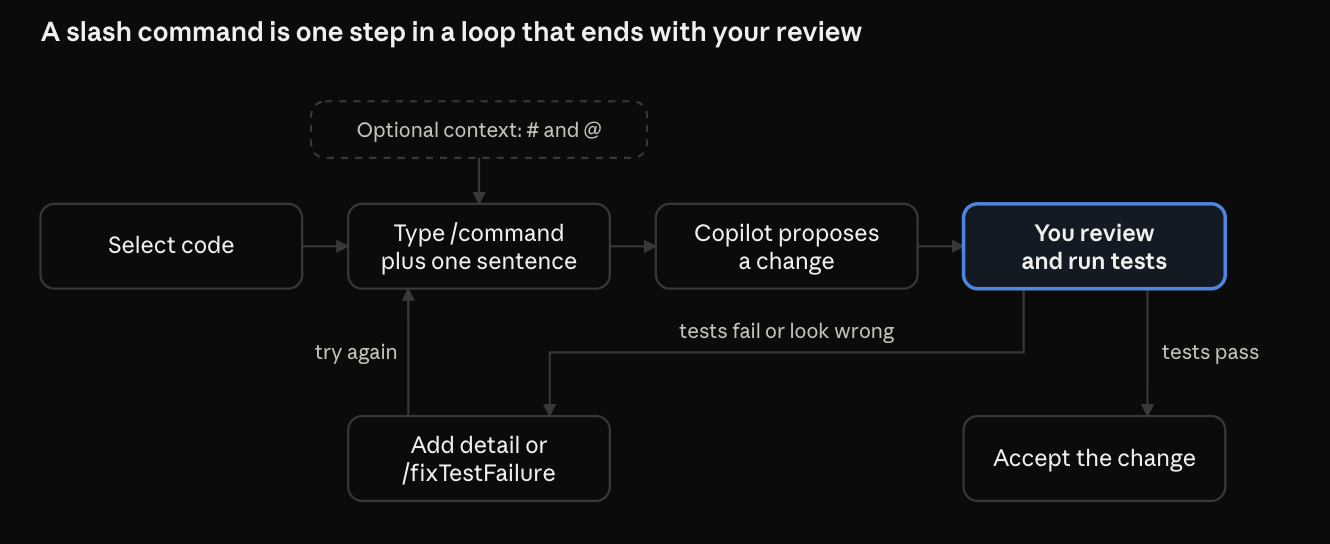
Most of the work happens after the command runs: review the proposal, run your tests, then accept it or go around again.
Which commands exist where
This table is based on the per-editor tabs of GitHub's Copilot Chat cheat sheet (checked 3 November 2026). A dash means the command is not listed for that environment, not that it can never work there.
| Command | VS Code | Visual Studio | JetBrains | Xcode | github.com |
|---|---|---|---|---|---|
/explain |
Yes | Yes | Yes | Yes | - |
/fix |
Yes | Yes | Yes | Yes | - |
/tests |
Yes | Yes | Yes | Yes | - |
/doc |
- | Yes | - | Yes | - |
/optimize |
- | Yes | - | - | - |
/simplify |
- | - | - | Yes | - |
/fixTestFailure |
Yes | - | - | - | - |
/help |
Yes | Yes | Yes | - | - |
/new |
Yes | - | - | - | Yes |
/clear |
Yes | - | - | - | Yes |
/delete, /rename |
- | - | - | - | Yes |
JetBrains also lists /compact, /chronicle, and /remote, which apply to Copilot CLI sessions run from the IDE.
The commands, one by one
The examples below use one small function so you can see how the commands build on each other:
def average_order_value(orders):
    total = 0
    for order in orders:
        total += order["amount"]
    return total / len(orders)
It has a bug: an empty list raises ZeroDivisionError.
/explain
What it does: explains how the code in your active editor (or your selection) works.
When to use it: unfamiliar code, a tricky regex, a config file you inherited.
/explain
/explain why does this divide by len(orders) instead of tracking a counter?
The second form is better. A bare /explain gives a general walkthrough, while a specific question points Copilot at the part you care about. This command is available in all four IDE tabs.
/fix
What it does: proposes a fix for problems in the selected code.
When to use it: a failing function, a lint error, a stack trace you have in front of you.
/fix ZeroDivisionError when orders is an empty list
Paste the actual error or describe the failing input. Without it, Copilot has to guess what "broken" means. Always read the proposed change before accepting it, and run your tests afterwards.
/tests
What it does: generates unit tests for the selected code.
When to use it: after you write or fix a function, and when adding coverage to legacy code.
/tests use pytest, cover an empty list, a single order, and a missing "amount" key
Name the framework and the cases you care about. If you don't, Copilot chooses the cases for you. Treat the output as a first draft: check that the assertions test behaviour you actually want, not whatever the code currently does.
/doc
What it does: adds a documentation comment for the selected symbol. Listed for Visual Studio and Xcode.
/doc Google-style docstring, mention the empty-list behaviour
In editors where /doc isn't listed, a plain prompt such as "add a docstring to this function" does the same job.
/optimize
What it does: analyses the selected code and suggests improvements to its running time. Listed for Visual Studio.
/optimize this loop runs on 2 million rows, focus on avoiding repeated lookups
Give Copilot the scale and the bottleneck you suspect. Then measure: a suggested optimisation is a hypothesis until a benchmark confirms it.
/simplify
What it does: simplifies the current selection of code. Listed for Xcode.
/simplify keep the public API unchanged
Adding a constraint such as "keep the public API unchanged" prevents a rewrite that breaks callers.
/fixTestFailure
What it does: finds and fixes a failing test. Listed for VS Code.
/fixTestFailure
Use it right after a test run fails. Check whether the fix changes the code or weakens the test; you almost always want the former.
/new
What it does: it depends on where you are. In VS Code it creates a new project; on github.com it starts a new conversation.
/new a FastAPI service with a /health endpoint and pytest set up
That example is for the VS Code behaviour. The same name doing two different things is a good reason to check the description Copilot shows when you type /.
/clear, /delete, and /rename
What they do: manage the conversation. In VS Code, /clear starts a new chat session. On github.com, /clear clears the conversation, /delete deletes it, and /rename renames it.
Start a fresh session when you switch tasks. Old context from an unrelated problem can pull answers in the wrong direction.
/help
What it does: shows a quick reference and the basics of using GitHub Copilot. It is the fastest way to see what your current version supports.
Adding context with # and @
Slash commands say what to do. Two other symbols say what to look at.
Chat variables start with # and attach context. The Visual Studio cheat sheet lists #file, #selection, #function, #class, #block, #line, #path, #project, #sym, and #comment.
/explain #file
/tests #selection use xUnit and Moq
In Visual Studio you can also reference files and line ranges directly, such as #MyFile.cs: 66-72.
Chat participants start with @ and act like domain experts. The cheat sheet lists @vscode (editor commands and features), @terminal (shell help and the terminal's contents), @github (GitHub-specific skills), and @azure (Azure services, in preview at the time of writing).
@terminal how do I list the 10 largest files in this directory?
Syntax and availability differ between editors, so check the autocomplete list that appears when you type # or @.
A workflow that chains the commands
On unfamiliar code, run the commands in this order:
/explainthe function so you understand what it is meant to do./fixthe specific problem, giving the error or failing input./teststo lock the corrected behaviour in, naming the edge cases./docto record the decision, where the command is available.
Understanding first matters. Fixing code you haven't understood is how you end up with a change that silences an error without solving the problem.
Tips and pitfalls
- Be specific after the command. A command plus one sentence of context beats the command alone.
- Keep the selection tight. A whole file dilutes the request.
- Review everything. Generated fixes and tests can look right and still miss the point. Read the diff and run the suite.
- Mind your data. Don't paste secrets, tokens, or customer data into prompts. Your organisation may also have content exclusion rules that affect what Copilot can see.
- Check your version. Commands are added, renamed, and moved between editors. This article reflects the cheat sheet on the check date above, so rely on the
/menu and the current GitHub Docs when they differ.
FAQ
How do I see which slash commands I can use?
Type / in the Copilot Chat prompt box. GitHub says the list varies by environment and chat context, and /help shows a quick reference.
Do slash commands work the same in every editor?
No. /explain, /fix, and /tests are listed for VS Code, Visual Studio, JetBrains, and Xcode, but other commands are editor-specific, and /new does different things in VS Code and on github.com.
What is the difference between slash commands, @ participants, and # variables?
A slash command says what to do. An @ participant picks a domain expert such as @terminal, and a # variable attaches context such as #file.
Is this the same as Microsoft 365 Copilot?
No. This guide covers GitHub Copilot Chat. Microsoft 365 Copilot is a separate product, so the commands here don't apply to it.
Summary
Slash commands turn the most common Copilot Chat requests into a few keystrokes. The core set, /explain, /fix, and /tests, works across VS Code, Visual Studio, JetBrains, and Xcode, while commands such as /doc, /optimize, /simplify, and /fixTestFailure depend on your editor. Start by selecting a small piece of code, type /, pick a command, and add one specific sentence. Then try the chain above on a function you've been avoiding.
Source: GitHub Docs, "GitHub Copilot Chat cheat sheet" (per-editor tabs), checked 3 November 2026.
Comments
Join the discussionNo comments yet. Be the first to comment.
Development
This series covers the aspects related to the development, covering frameworks or languages used for development.


